Thickness Definition
This window allows you to define a thickness. The left pane of the window shows a list of available thicknesses in the model. The right side displays the parameters of the selected thickness. This is also where the parameters for a new thickness are entered.
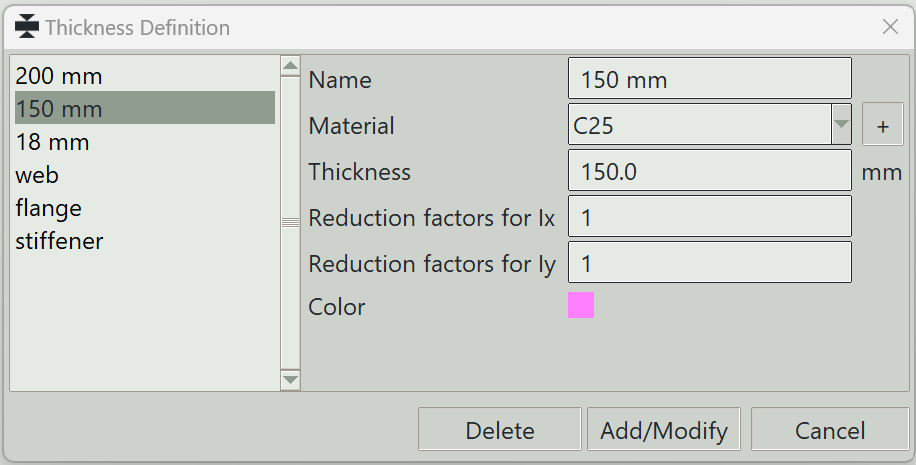
1. Name
A unique name for the thickness. It can be left empty, and the program will generate one automatically.
2. Material
The material to assign to this thickness.
3. + button
Opens the definition window so that you can add a new material.
4. Thickness
The thickness value.
5. Reduction factor for Iy
A factor to modify the stiffness of the thickness about the local x-axis.
6. Reduction factor for Iy
A factor to modify the stiffness of the thickness about the local y-axis.
7. Soil stiffness, y, z, x
These fields allow you to define a slab or mat foundation supported by an elastic soil (Winkler foundation). Enter the soil subgrade stiffness for the local y, z, and x directions, in units of force per cubic length.
When a shell element is assigned this thickness, Songeya automatically converts the specified soil stiffness into equivalent linear springs at each finite element node. The spring stiffness at each node is calculated based on the node's tributary area, so no manual calculation is required.
This provides a convenient way to model soil-structure interaction for foundations and slabs resting on elastic supports.
The same behaviour can also be achieved by assigning linear springs directly to the shell nodes. However, in that case, the tributary area for each node must be determined manually in order to calculate the correct spring stiffness.
8. Color
A color to give to this thickness for visualisation.
9. Delete button
Deletes the selected thicknesses.
10. Modify button
Modifies an existing thickness in the model.
11. Add button
Adds a new thickness to the model.
12. Cancel button
Closes the window.